
I run a small data recovery group on Facebook, so I see the same kind of thing every week. Someone deletes an important folder. Or formats a memory card. Basically gets hit with one of the common data loss situations most of us run into sooner or later.
I am not a recovery lab technician, but I have spent a lot of time trying different recovery software, reading recovery cases, and helping complete beginners figure out what to do next. Most people who post in my group usually have one main question: what software should I use? That is why I wanted to put together a list of what I consider the best data recovery software. These are the tools I actually use and recommend most often when people ask for help, based on the kinds of real cases I see in the group.
The Logic Behind My Recovery Software Picks
Before making this list, I spent some time thinking about how to present it.
The thing is, there are tons of data recovery tools out there, and some of them are so different that it almost makes no sense to put them directly against each other. So this is not going to be the ‘1, 2, 3,…’ list I often see online.
Most data recovery software does the same basic job (at least in theory). It scans a device, finds lost data, tries to recover it.
Of course, the difference is in the details. Some apps have better algorithms. Or handle more file systems. Some are better with formatted drives, RAW partitions, or damaged directory structures. But in the right scenario, every recovery app can recover something.
That is why I did not want to make a long list of 10 tools that all do more or less the same thing, only with slightly different strengths and weaknesses. I think it is more useful to say: “For this type of case, this is the tool I would personally start with.”
I decided to break everything into categories and pick just one tool I consider ‘the best’ for each one. That way, you do not have to compare every app against every other app.
I ended up with 4 apps, here’s why:
- First, I wanted one tool that makes sense for basically anyone. Something you can install, scan with, preview files in, and understand without reading a manual and still have great results. (Spoiler: it’s Disk Drill. This is the app I find myself recommending most often.)
- Then I wanted to include a tool for partition-related cases. These are the situations where the files may still be there, but the partition table / file system / boot sector is damaged. This is a different kind of problem, so I think it deserves its own place. You may not need “data recovery software” in the classic sense in such a scenario.
- I also wanted to cover Android. A lot of people lose photos or other files on their phones/tablets, then come to the group with questions. The advice for Android recovery has its own quirks and limits, so I treated it as a separate category. And why not iOS too? Simple answer – iPhone recovery is much more locked down, and iPhones do not use memory cards. Many desktop tools can recover data from iPhones, but you should read up on how it REALLY works.
- Finally, I wanted to mention the type of recovery software that comes from storage brands themselves. You sometimes get these tools bundled with memory cards, and people often ask whether they should use them or ignore them. They are not always the best choice, but they can make sense in specific situations. So I included this as well.
This is not a “longest feature list wins” ranking. It is the short list I would give someone who asked me what to try first.
Disk Drill – The Best Data Recovery Software Overall
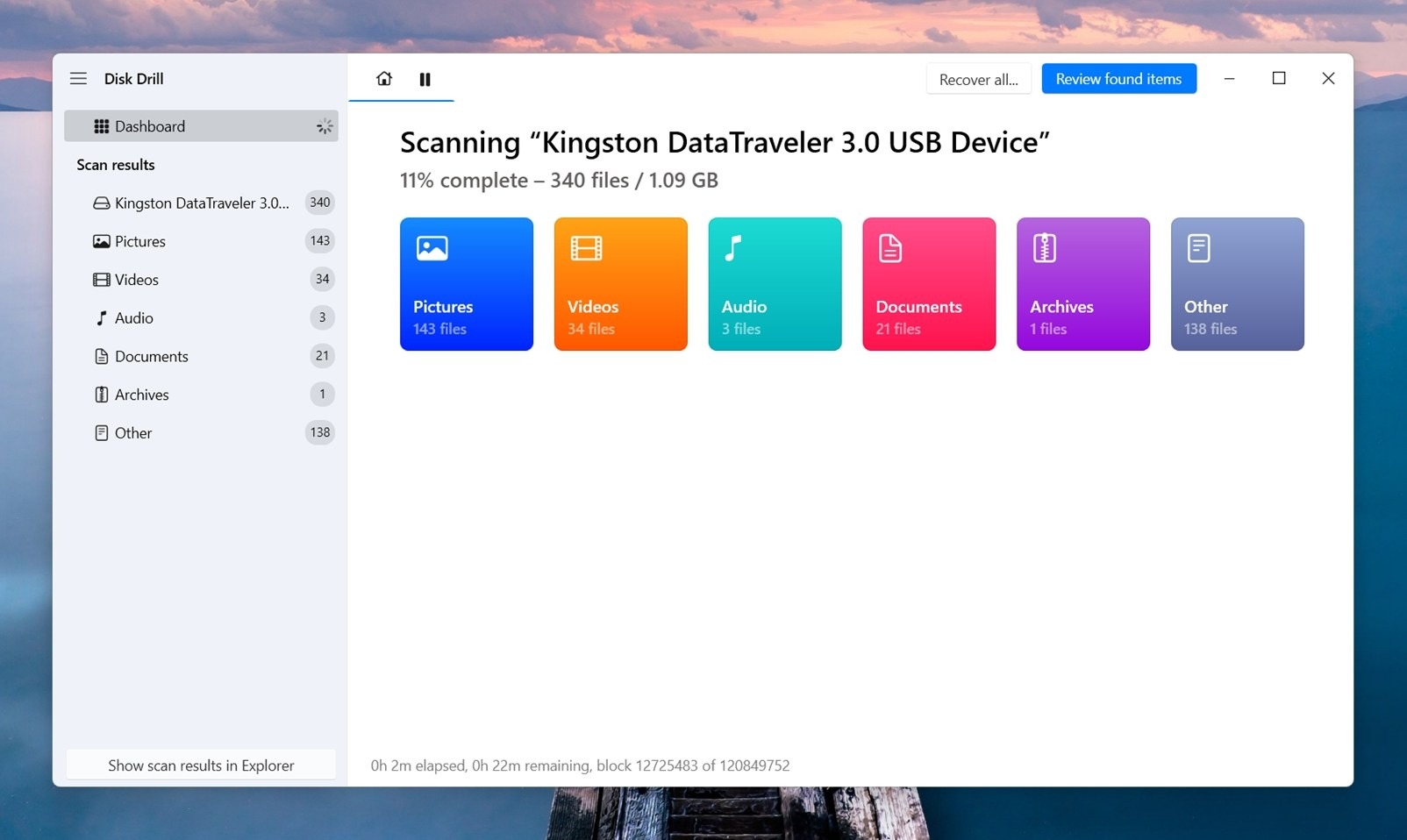
As I already spoiled, Disk Drill is the data recovery app I recommend more often than any other. The main reason is that it gives you a good balance between power and usability.
A lot of data recovery apps lean too far in one direction. Disk Drill sits in a perfect place. It is packed with recovery scan methods and extra recovery features, but in most cases, you do not have to think about all of that. You select your device from the list, click the big blue Search for lost data button, let it scan, then browse found files in neat categories with nice previews and filters. After that, you select what you need and recover it to another drive. As simple as can be.
It also keeps evolving. One of the newer features I already used myself a couple of times is Advanced Camera Recovery. The developers are pretty open about where this came from, too – they acquired CnW Recovery, the company behind GoPro Recovery, and integrated that video recovery technology into Disk Drill. And let me tell you, if you have ever tried to recover video footage from cameras, GoPros, or similar devices, this feature is a must. I have saved more than one video with it in cases where other user-friendly (and not that user-friendly) recovery apps did not find anything useful.
Another big plus is that Disk Drill works on both Windows and Mac, so it is basically universal for most people, unless you are a Linux guy.
The app is freemium: you can install it, scan your device, and preview found files as much as you want. (On Windows, there is also a 100 MB free recovery allowance. For many people who only need to recover an important document or a couple of photos, that can be enough to use it for free.) So, if someone asks me for the best data recovery software overall, Disk Drill is the one I usually mention first.
A Few Alternatives to Disk Drill
Honestly, in this category, I would not spend too much time looking for a Disk Drill alternative. If we are talking about the best data recovery software overall, it is hard to find something I would recommend above it.
But I do understand why people still ask for alternatives. From what I have seen, they usually want one of two things…The first group wants something more advanced and feature-packed. That is fine, but I would not confuse “more settings” with “better recovery” by default. A tool can give you more control, more scan options, more tools, and more technical menus, but that does not automatically mean it will recover more useful files in your exact case. Sometimes it will. Sometimes it will only make the process harder for a beginner. The second group is usually looking for something that fits their budget.
- UFS Explorer. For a first scenario, I would look at something like UFS Explorer. It is a tool with a lot of depth, and it makes more sense for people who already understand what they are looking at. I would not usually hand it to a beginner as the first option, but if someone wants more control and is comfortable with a more technical interface, it belongs in the conversation.
- Recuva. In the second case, Recuva is still the name that comes up a lot. It is simple, familiar, can still help in basic, straightforward situations. But I would keep expectations realistic. For formatted drives, RAW partitions, damaged file systems, or more complicated recovery cases, I would not put it on the same level as stronger modern recovery apps. PhotoRec is decent, too, maybe even better.
You will also often see EaseUS Data Recovery Wizard and Wondershare Recoverit mentioned as Disk Drill alternatives. I understand why – they are similar products on paper. They target the same type of user, follow a similar distribution model, focus a lot on a clean UI, and are similarly marketed. But in my experience, they do not recover as well as Disk Drill. So if someone asks me for a true Disk Drill alternative, I usually do not point them to another app that feels almost the same but performs worse in the cases I have seen.
TestDisk – The Best Tool for Partition Repair
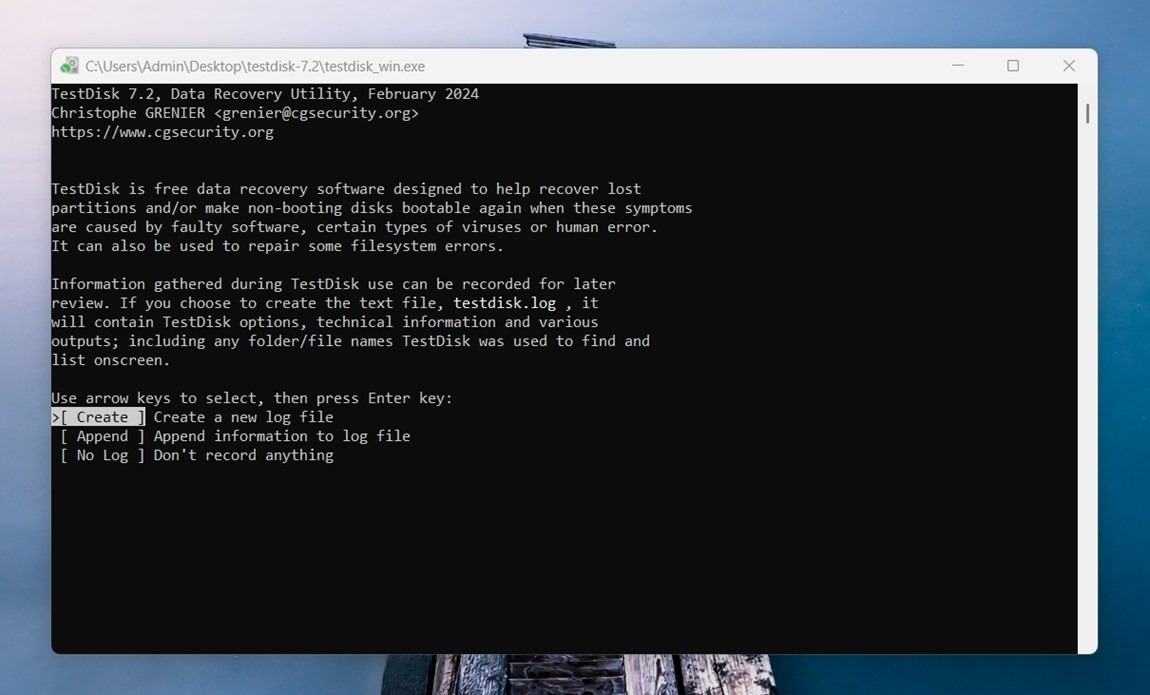
TestDisk is the opposite of the previous one.
It is about as far from user-friendly as you can get. No nice interface (No UI at all; it’s all in Terminal), no scan buttons, no preview panel with thumbnails. You open it and get a text-based screen. For a complete beginner, that alone can be enough to close it immediately.
But TestDisk is still one of those free data recovery tools I keep recommending in specific cases because it does something many regular recovery apps do not always focus on: partition recovery. (To be clear, many recovery apps can recover files from a lost/damaged partition. But TestDisk is different because it can recover the partition itself.)
It can (if you’re lucky) find the lost partition structure and write it back. That is a different job from scanning the whole drive and copying recovered files somewhere else. When it works, it can bring the partition back in a way that feels almost too simple afterward.
The catch is that you need to be careful.
TestDisk is not the tool I would hand to someone who has never opened Terminal before. It can make changes to the drive, and that means you should understand what you are choosing before you confirm any operation. I usually tell people to read the prompts slowly, take and send screenshots of each step, and when in doubt juts close it and pick something simpler.
A Few Alternatives to TestDisk
There are a few tools that can help with partition-related problems. The ones I would mention are:
- DiskGenius. Probably the closest. It has a proper graphical interface, which already makes it less scary than TestDisk, and it includes partition recovery, partition table repair, file recovery, and general disk management features in one place. I like that you can actually see the disk layout visually. The downside is that it is still a technical tool and is not free like TestDisk.
- MiniTool Partition Wizard is easier to look at, and it can help with common partition management tasks. For me, though, it feels more like a partition manager first and a recovery tool second. I would consider it for simple partition issues, but if the case is about finding a lost partition and restoring the structure, I still trust TestDisk more.
- AOMEI Partition Assistant is clean, easy to use, and useful for resizing, moving, formatting, converting, and managing partitions. But again, more of a partition management app than a recovery tool.
DiskDigger – The ‘Best’ Data Recovery App for Android
DiskDigger is the Android recovery app I mention most often, mostly because Android data recovery is its own messy little category. On a computer, data recovery is usually more straightforward. And whenever possible, I would recommend using a computer instead. (For example, if the lost files were on a microSD card inside an Android phone, better to take the card out, connect it to a computer, and scan it there. You will get far better results than scanning from the phone itself because Android has a lot of restrictions by design.)
But if you need to run the scan directly on the Android device, then DiskDigger is still the app I would usually tell people to try. It has a free version, which is already enough for basic recovery. You install it from Google Play, choose the scan type, and let it search the phone. If the device is not rooted, the scan will be more limited, so one should not expect miracles. It may find cached images, thumbnails, or files that are still accessible to the app. If the phone is rooted, DiskDigger has a better chance of finding something useful. If the question is about specifically Android recovery, DiskDigger is the one I usually name.
Do not root the phone after the data loss happened. I know it sounds tempting. DiskDigger can scan deeper with root access, so the next thought is, “Okay, I’ll root the phone and then recover my files.” But if the lost files were in the phone’s internal storage, that would only make things worse. The rooting process itself may write new data to the device and overwrite the files you are trying to recover. After that, even a deeper scan may have nothing useful left to find.
If the lost data was on a microSD card, the situation is less risky if the card was not used as internal/adopted storage. But even then, rooting the phone is a lot of effort for something you can usually avoid by taking the card out and scanning it on a computer.
If the phone was already rooted before the data loss, DiskDigger may have a better chance. If it was not rooted, do not root it now just for recovery.
A Few Alternatives to DiskDigger
There are a few other Android recovery apps that compete for the title of best data recovery software in this category:
- Dr.Fone is probably the name many people run into first because it covers more than Android recovery. It can help with same phone recovery cases, but I do not usually recommend it first because it feels heavier and definitely more commercial. For someone who only wants to check if a deleted photo is still recoverable, it may feel like too much.
- EaseUS MobiSaver is another Android recovery tool that aims at regular users. It is simple enough to understand, and it may be worth trying if DiskDigger does not find anything. Still, I would put it in the same realistic bucket: on unrooted phones, results can be limited, the app cannot escape how Android storage works.
RescuePro Deluxe – The Best Brand-Specific Data Recovery Software
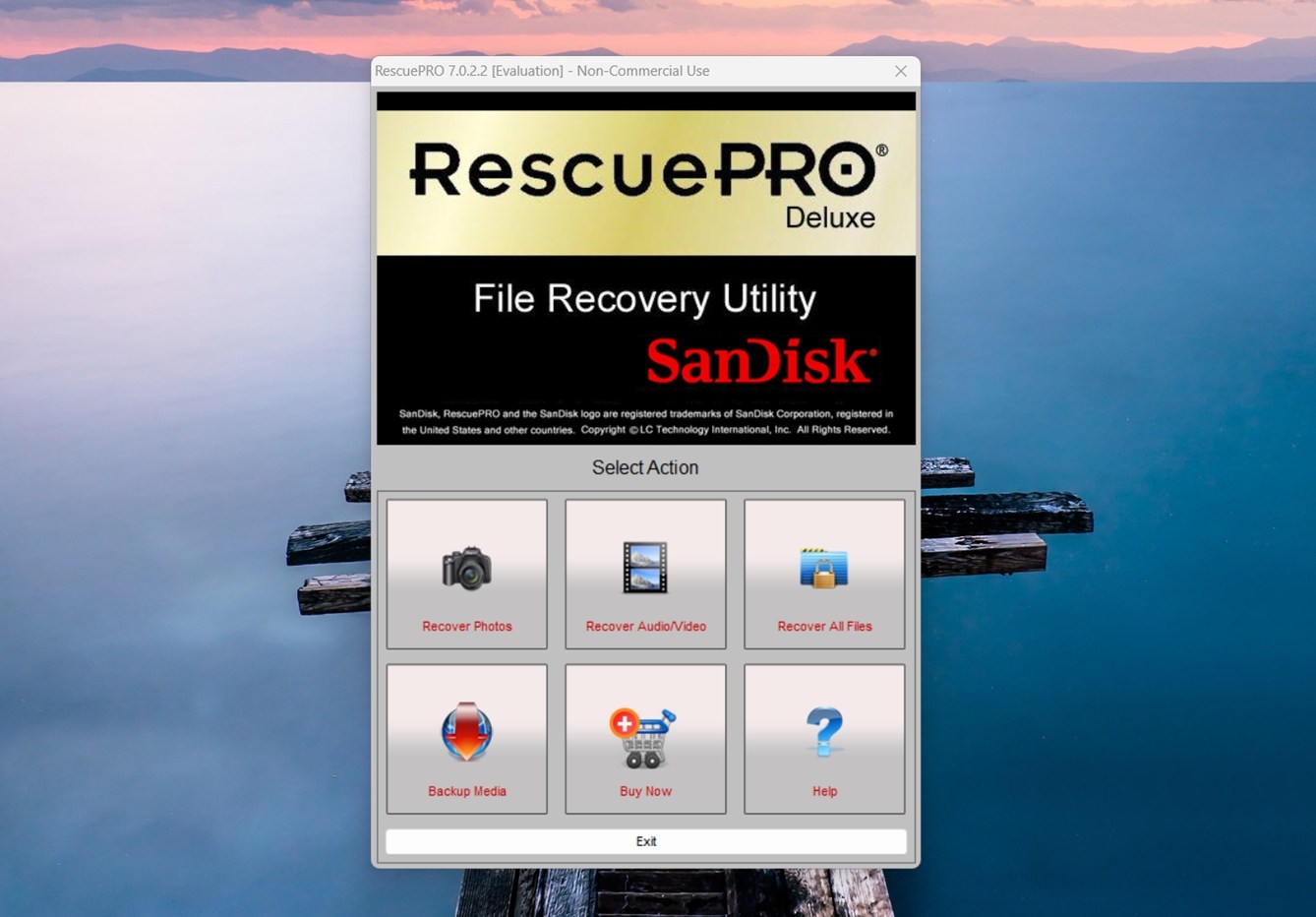
I debated with myself whether this one even deserved a separate category, because in data recovery the brand of your device usually does not matter that much. A deleted photo on a SanDisk card is still a deleted photo. A formatted Samsung card is still just a formatted card. The recovery process usually depends more on the file system, the type of device, how the data was lost. So no, you do not normally need “the official app” from the same brand as your memory card.
But I still wanted to mention RescuePRO Deluxe because people ask about this kind of software sometimes.
If you bought SanDisk memory cards before, especially the more expensive Extreme or Extreme Pro cards, you may have seen RescuePRO Deluxe included as a bonus. (Sometimes there is a small sticker with an activation code inside the package.) And that is probably the best argument for trying it – you may already have it. For free.
RescuePRO cannot really compete with something like Disk Drill, which I consider the best overall recovery app. But among these brand-specific recovery tools, RescuePRO Deluxe is one of the more decent ones I have seen. It is made with memory card recovery in mind, and for common cases like deleted photos, formatted SD cards, or a card that suddenly looks empty, it can be worth a scan. If you already got a free license with your SanDisk card, doubly so. You lose nothing.
The app itself is old-school. Do not expect the clean modern UI or the smooth preview-and-filter experience. It is more direct. You pick the card, choose what you want to search for, run the scan, and see what comes back. In some cases, that is enough.
Where I would not overestimate it is with more complicated cases. If the card is failing, not detected properly, RescuePRO Deluxe is not some special brand-level fix. And if you do not already have a free license bundled with your card, I would compare it with broader recovery tools before paying for it separately. So I see RescuePRO Deluxe as the best brand-specific data recovery option. Mostly for SanDisk users who already got it with their card.
A Few Alternatives to RescuePRO Deluxe
There are a few other brand-specific recovery tools in the same general category that can be worth checking:
- Lexar Recovery Tool is one of them. Lexar has offered recovery software with some of its memory cards, and the idea is the same. It may help with simple deleted or formatted card cases, but I would not treat it as a universal recovery solution.
- Transcend RecoveRx is another one I would mention. Free, simple, and aimed at Transcend storage devices (memory cards and USB drives).
- Sony Memory Card File Rescue also belongs here. It is meant for Sony memory cards and the kind of files people usually store on them, like photos and videos. Again, I would mostly try it if you already use Sony cards or want to check one more option before moving to a broader recovery app.
My Final Verdict
So that’s it. This is the best data recovery software I use myself and recommend to other people.
Of course, this is strictly my own experience. I am not trying to start any holy war over tools, and I know different people will have different favorites. But since I hear the same questions in my group all the time, and since people often ask me what to try, I wanted to put my thoughts into one place and explain why I keep coming back to these specific apps.
Another good thing is that all of these tools can be used for free (with some caveats). That means you can try them yourself and see what makes sense in your own case.
If I had to recommend one data recovery app blindly, without knowing the exact situation, I would name Disk Drill as the best data recovery app. That is why it landed in the best overall category. When in doubt, Disk Drill is the answer.
But the other tools have their place too.
- TestDisk is the one I think about when the problem looks more like partition recovery.
- DiskDigger makes sense when someone needs to scan directly on Android.
- RescuePRO Deluxe is worth trying if you already got it with a SanDisk card and the case is a simple card recovery job.
I hope you find this useful and, more importantly, I hope it helps you pick the right app without wasting time jumping between random recommendations online. Data recovery is tough enough as it is.