
A bit of background first – about a month ago, I accidentally deleted a bunch of photos from this same SD card during a trip around Europe. I spent an evening trying different recovery tools, got the photos back, and wrote about the whole thing afterward.
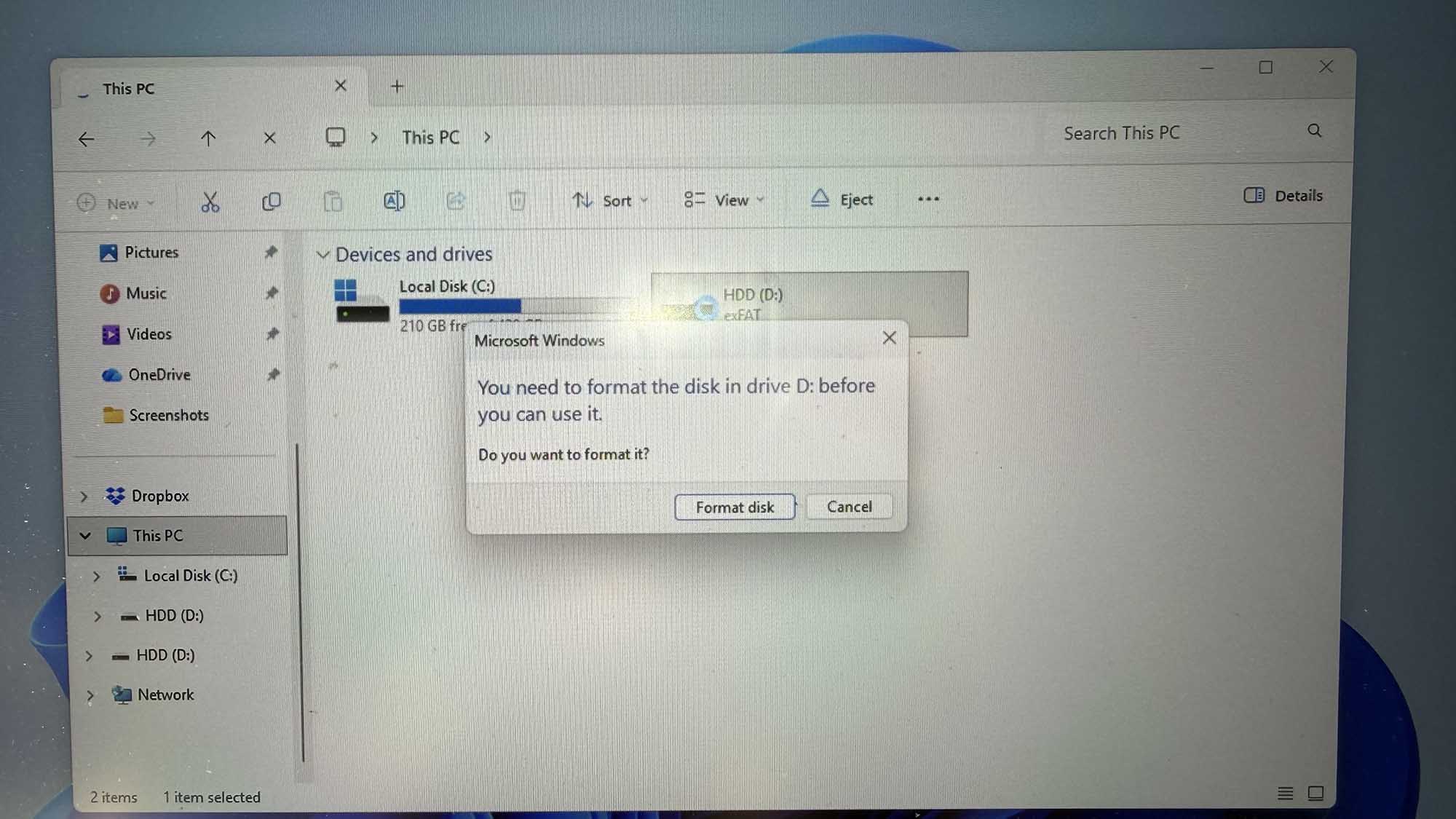
I thought that was the end of my problems with this card, so I kept using it and taking photos here and there (probably worth mentioning that). Then one evening I put the card into my camera and got an error instead of my photos. Windows wasn’t much more helpful – when I connected the card to my laptop, it wanted me to format it before I could use it. I would have done exactly that, but the card still had a few weeks of photos on it that I hadn’t copied anywhere else (getting another SD card wasn’t an option at that point as it was already late at night, and I had plans with friends the next morning where I’d promised to bring the camera).
Recovering those photos was actually the familiar part. This time, though, I had another job after that: repair the SD card and get it working again. So I went online to see how people actually fix a corrupted SD card. It didn’t take long to find plenty of advice, but it also didn’t take long to find out that not all of it was good advice. Here’s what I did, in order, including the stuff that didn’t work.
How I Realized the SD Card Was Corrupted
First thing I did was Google it, obviously. The advice that kept coming up was to try the card in another device. I only have one camera, so the laptop it was.
Windows did recognize the card, but that was about it. Instead of showing me my files, it popped up a message asking me to format the disk before I could use it. I googled the exact wording and found a Reddit thread where people were describing the same thing as a common sign of a corrupted SD card.
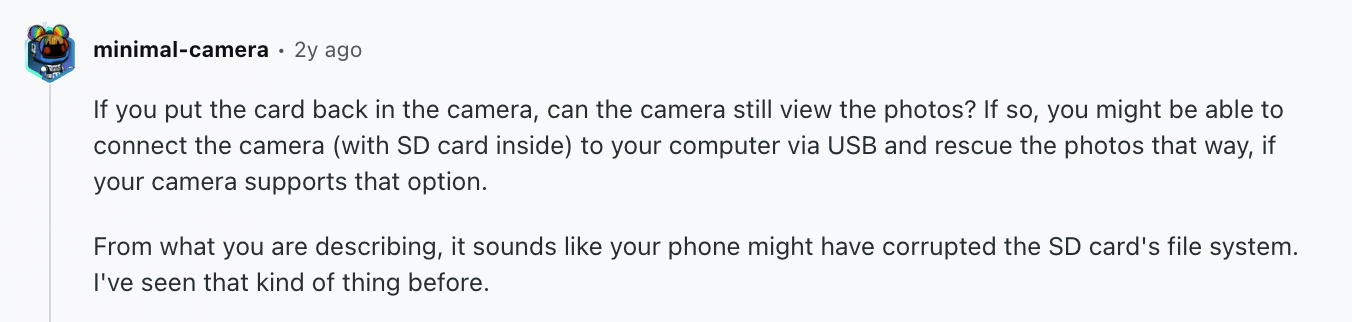
My first thought was still that the card might simply be dead. I had no idea how to tell the difference. A bit more searching led me to another Reddit discussion where people recommended checking the card in Windows Disk Management.
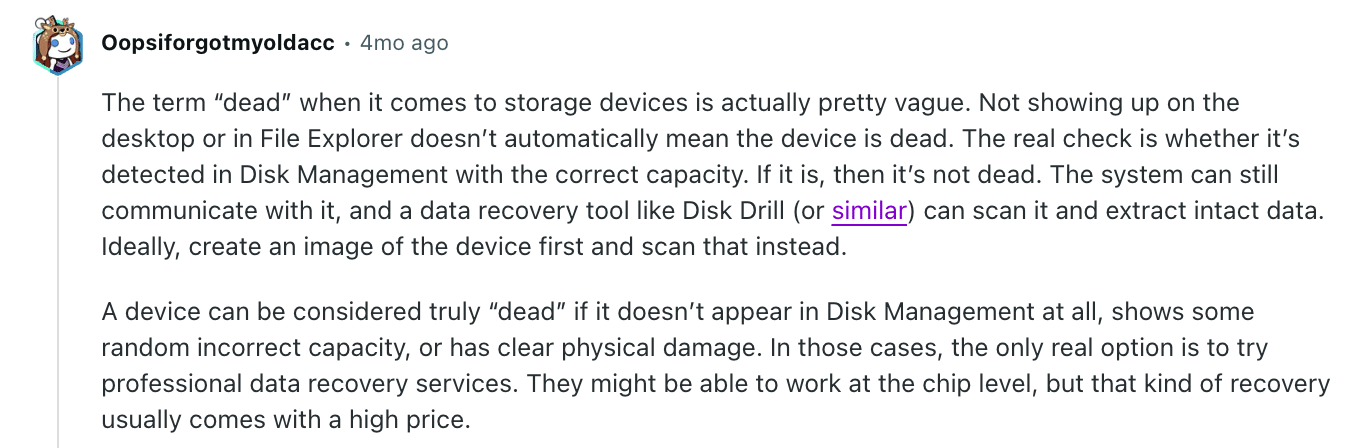
I’d never opened Disk Management before, and didn’t even know it was there. But my SD card showed up with the correct capacity, so at least that check looked the way the Reddit posts said it should.
From my previous run-in with this SD card and data recovery, I already knew I shouldn’t keep using the card while there were files I still wanted to recover (not that it was giving me much of a choice this time), so I just closed the format message and left the card as it was. Okay. Moving on.
Once Again, I Used Disk Drill to Recover Data From the Corrupted SD Card
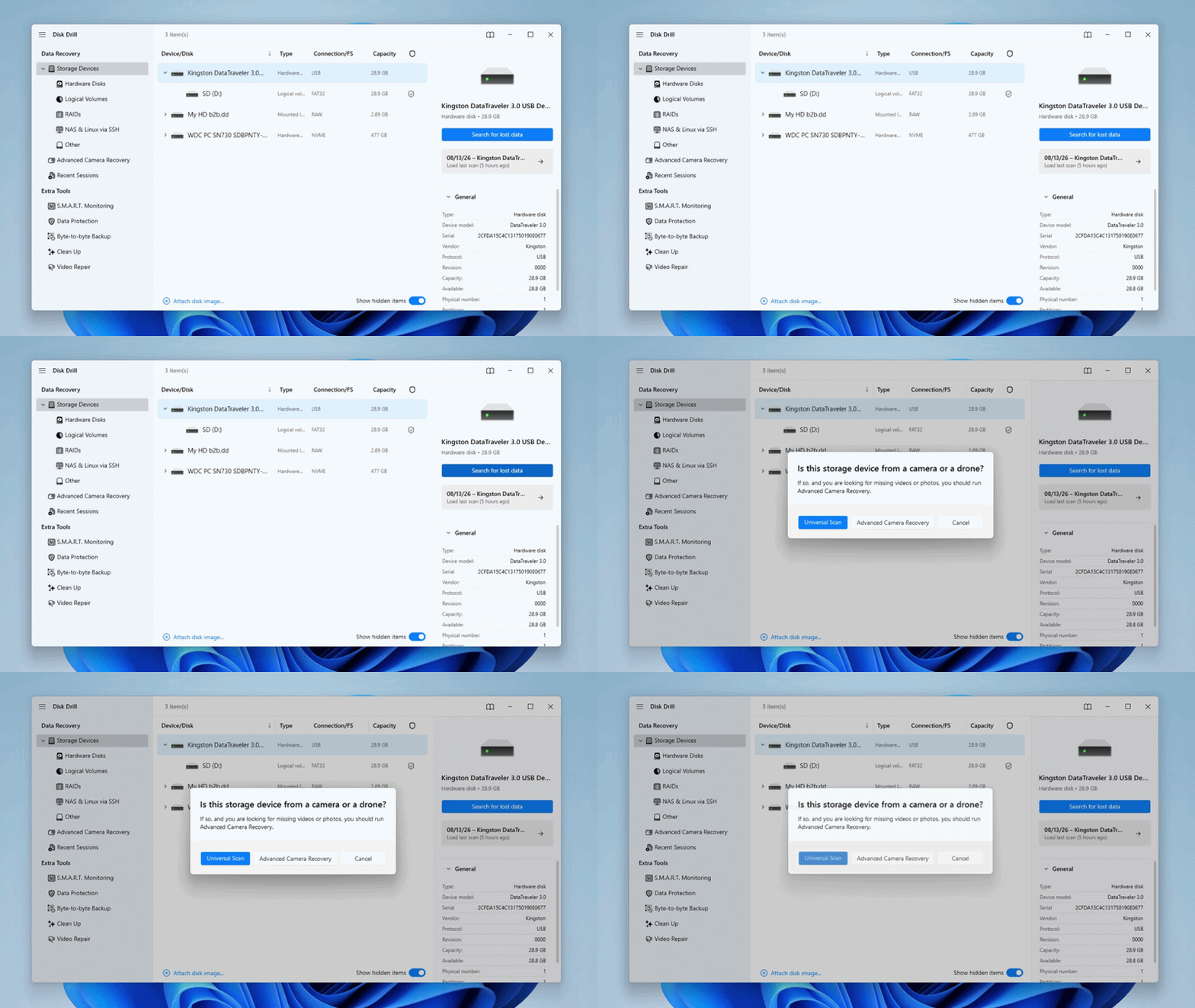
I didn’t have to research recovery software this time as I’d already been through that during the deleted-photos episode. Disk Drill was still installed on my laptop from then, and I already knew how to use it. So I just opened it again (if you’re curious why I stuck with Disk Drill in the first place, I explained that in more detail in my previous post).
The process was basically the same as with deleted files: select the SD card from the drive list, click Search for lost data, choose Universal Scan, and wait. The time estimate was all over the place, jumping from 8 minutes to 40 and then back down again. In reality, the scan took a little over twenty minutes.
The results had everything I was looking for, plus a bunch of photos I’d deleted weeks ago and completely forgotten about. I almost clicked Recover All, then realized I’d just be dumping a pile of files I didn’t need onto my Desktop and sorting through them at 1 am. So I selected only the last three weeks of photos and recovered those.
I opened a dozen or so afterward just to check. All fine. Photos safe. Now the card itself.
What Finally Helped Me Restore My Corrupted SD Card
You might laugh, but after all the searching and troubleshooting, the thing that finally helped me uncorrupt an SD card was simply formatting it (through Disk Management). Once it finished, Windows recognized the card normally again. Then I put it back into my camera, and the camera recognized it too. I formatted the card one more time there, just to make sure it was set up properly for the camera I was actually going to use it with. That was it. Of course I was ok with formatting because I already recovered data from the SD card in question, but still.
What I Tried Before Formatting the SD Card
Formatting was definitely not the first thing I tried. Before I got there, I spent quite a while jumping between Reddit threads and trying to figure out which SD card repair methods were actually worth attempting.
After a while, I was mostly seeing the same suggestions repeated in different orders. So I decided to find one guide that had them all in one place and work through it from top to bottom. CleverFiles has a detailed guide on how to fix a corrupted SD card that covered pretty much everything I had been seeing on Reddit, so I used that as my checklist.
Here’s what happened with each method on my card:
| Method | What happened |
|---|---|
| Check the SD card for physical damage | I skipped this one. Nothing had happened to the card physically before the errors started, and I couldn’t see any obvious damage. |
| Try different hardware | I had already done this earlier when I moved the card from my camera to my laptop and connected it through a card reader. |
| Run CHKDSK | I didn’t try this one. Command Prompt already makes me nervous because I’m always worried I’ll type something wrong, and I also found plenty of Reddit comments telling people to be careful with CHKDSK on a corrupted SD card. I decided to leave it alone. |
| Assign a new drive letter | Windows had already assigned one automatically. The format message even referred to the card as drive P:, so there wasn’t really anything for me to change here. |
| Reinstall the SD card drivers | Tried it. Nothing changed. |
| Run the Windows Error Checking tool | The scan completed successfully, but the SD card was still unreadable afterward. |
| Use TestDisk | I read a bit about it and decided not to bother. It has the same terminal-style interface that put me off PhotoRec during my previous recovery attempt, and at that point I really didn’t feel like learning another command-line tool. |
| Check for hidden files | I tried it just to cross it off the list. Nothing showed up. |
None of these worked for me. That doesn’t mean they won’t work for you – otherwise they probably wouldn’t keep showing up in every SD card repair guide I found. In my case, formatting was what finally fixed the card.
My Final Thoughts
In the end, I got pretty much the best result I could have hoped for. All the photos I cared about were returned, formatting recovered the corrupted SD card, and both Windows and my camera could read it normally again.
I still have no idea what caused the corruption – maybe I removed the card at the wrong moment, maybe something went wrong while the camera was writing to it, or maybe the card just had a bad day – I can guess, but that’s about it.
I’m also glad I already had Disk Drill installed from my previous SD card problem. It saved me from having to figure out the recovery part from scratch at 1 am (and I really hope I won’t need it for this card a third time).
I’m still going to use the same SD card. Maybe that’s questionable after everything I just wrote, but it’s working normally again and I’m curious to see how long it lasts. I did finally learn that leaving several weeks of photos on a memory card without copying them anywhere else is a habit I should probably stop. I’ll be backing them up a lot more often from now on. And ordering a spare card.